12 Business Card Design Mistakes to Catch Before You Print
Most business card mistakes are invisible on a screen and obvious on paper: a logo that prints soft or sits in a white box, contact details too small to read, a white sliver along one edge, a QR code that will not scan. This guide covers the 12 problems that most often separate a card that looks right in the editor from one that prints well, including the ones we run into when turning websites into cards, with the fix for each and a five-minute checklist to run before you order.
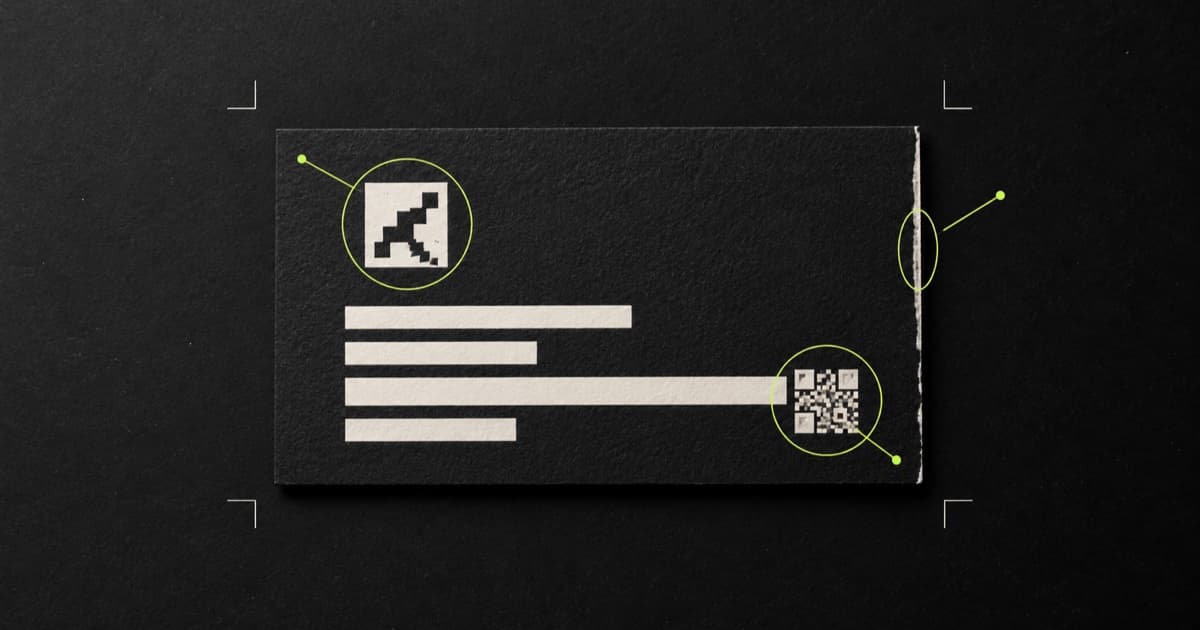
What are the most common business card design mistakes?
The most common business card design mistakes are print problems, not taste problems. A layout can be well composed and still fail once it is printed, because a screen is backlit, forgiving, and usually viewed larger than the card will ever be. Paper is none of those things. These twelve are the ones that most often turn a good design into a disappointing box of cards.
| Mistake | What you see on the printed card | Fix |
|---|---|---|
| 1. Favicon or small logo scaled up | A soft, blocky, or blurry logo | Use a vector logo, or at least 300 px per printed inch |
| 2. Logo stuck in a white box | A pasted-on rectangle on a colored card | Use a transparent logo, or put it on a white face |
| 3. Text too small | Contact details people have to squint at | Contact text at 7–9 pt; nothing below 6 pt |
| 4. Text over a busy or dark area | Words that fade into the background | A flat, high-contrast area behind every line |
| 5. Hairline fonts and lines | Broken strokes, faint rules, fuzzy small black text | Lines 0.5 pt or thicker; flat black for small text |
| 6. No bleed | A thin white sliver along one edge | Extend backgrounds 0.125 in past the trim |
| 7. Content outside the safe zone | Text or a QR code clipped or jammed against the edge | Keep essentials 0.125 in inside the trim |
| 8. Thin border near the edge | A frame that is visibly thicker on one side | Drop the border or move it well inside the safe zone |
| 9. Screen-only colors | Brand colors that print dull or shifted | Preview in CMYK and order a proof |
| 10. Fonts not embedded | A different typeface, or lines that reflow | Embed or outline fonts in the PDF |
| 11. QR code too small or crowded | A code that will not scan, or looks misprinted | At least 0.8 in, a four-module quiet zone, clear space around it |
| 12. Stale or unchecked details | A typo, an old phone number, a dead link | Proofread every character and test every link |
Why does my logo look blurry or boxed-in on a business card?
When we turn websites into cards, the logo causes more trouble than anything else, because the version that is easiest to find on a website is often the worst one to print.
- 1. A favicon or small logo scaled up. A favicon is the tiny icon in a browser tab, often 32 or 48 pixels square. Printers ask for images at about 300 pixels per inch at the final size, so a logo printed 1 inch wide needs about 300 pixels across and one printed 1.5 inches wide needs about 450. A 48-pixel favicon stretched to an inch has a sixth of that. Use a vector file (SVG, EPS, or a PDF from your designer), which stays sharp at any size. If you only have a raster file, check its pixel width before you place it.
- 2. A logo stuck in a white box. Many logos on the web are JPEGs or PNGs with a solid white background. On a white card nobody notices. On a navy or black card the background shows up as a white rectangle and the logo looks pasted on. Use a transparent PNG or SVG, ask your designer for a reversed (light) version for dark backgrounds, or make that side of the card white so the logo sits on a matching surface. A white rounded panel behind the logo rarely fixes it; on a card this small it reads as the same box with a border.
If your logo lives on your website, the guide to turning a website into a business card covers which file to use and why.
Why is the text on my business card hard to read?
- 3. Text set too small. A card is read at arm’s length in whatever light is around. Our business card typography guide suggests 11–14 pt for the name and 7–9 pt for contact details, with 6 pt as the absolute floor for fine print. MOO’s print checklist asks for 8 pt or larger, which is the safer target on uncoated or textured stock, where ink softens small type.
- 4. Text over a busy or dark area. Text that crosses a photo, a gradient, or a diagonal stripe of color changes contrast partway through a line. On one card we reviewed, dark name and contact text ran across a dark diagonal band, and part of it nearly disappeared in print. Put every line of text on a flat area with strong contrast. The W3C contrast guideline of 4.5:1 for normal text was written for screens, but it works as a minimum for print too.
- 5. Hairline fonts and lines. Thin strokes that look elegant on a high-resolution screen can break up or fill in on paper, and MOO asks for lines of at least 0.5 pt. Small black text has its own trap: rich black, a mix of all four inks, looks deeper on large areas, but Vistaprint’s prepress checklist warns that slight ink shifts make small rich-black text look fuzzy. Use flat black (100% K) for text and thin lines.
What goes wrong at the edges of a business card?
Cards are printed several to a sheet and cut apart, and the blade does not land in exactly the same place every time. Three rules absorb that drift. A standard US card is 3.5 × 2 inches at the trim.
- 6. No bleed. If a background color or photo stops exactly at the trim line, a slight miscut leaves a white sliver along one edge. Extend backgrounds 0.125 inch past the trim on every side, so the file for a US card is 3.75 × 2.25 inches.
- 7. Important content outside the safe zone. Keep text, logos, and QR codes at least 0.125 inch inside the trim. Anything closer can be clipped, and even when it survives, it looks cramped against the edge.
- 8. A thin border near the edge. A frame drawn close to the trim shows every bit of cutting drift: if the cut shifts slightly, the border ends up visibly thicker on one side than the other. Drop the border, or set it well inside the safe zone where small shifts are not noticeable.
The business card size, bleed, and safe zone guide has exact dimensions for US, EU, and Japanese cards, with pixel sizes at 300 DPI.
Why do my colors and fonts change when the card is printed?
- 9. Screen-only colors. Screens mix red, green, and blue light (RGB). Most printers use cyan, magenta, yellow, and black ink (CMYK), which cannot reproduce some bright screen colors. Electric blues, neon greens, and saturated oranges suffer most, so a brand color copied straight from a website can print noticeably duller. Preview the design in CMYK, and if an exact color matters, order a proof before the full run.
- 10. Fonts not embedded. If the print file refers to a font instead of including it, the printer’s system substitutes another, and lines can reflow or overflow. Designs that start on the web are especially prone to this, because web fonts load from a server that print software may not reach. When we tested our own print renderer, which blocks outside requests, cards that linked to web fonts came out in a fallback typeface. Export a PDF with fonts embedded or converted to outlines, then open it to confirm the type is the one you chose.
For how color, resolution, and file format fit together, see what makes a business card print-ready.
Why won’t the QR code on my business card scan?
11. A QR code that is too small or crowded. A working code is the most useful thing on a modern card, and a broken one is dead weight. Size, the margin around the code, and whatever sits next to it cause most failures.
- Too small. Keep the code at least 0.8 inch (2 cm) square on a standard card. A long URL or a full contact card packs in more data, which means more and smaller modules at the same size, so encode a short link when you can.
- No quiet zone. DENSO WAVE, which invented the QR code, specifies a clear margin four modules wide on every side. On a dark card, that margin has to be part of a light panel.
- Crowded by other elements. We learned this one from our own work: a printed order shipped with a small serial number tucked about a millimeter under the edge of the code’s white panel. It looked like a printing mistake. Kleido now keeps every other element clear of the whole QR panel, not only its modules.
- Low contrast or a special finish. Dark modules on a light background scan best. Inverted codes, pale brand colors, and foil or gloss over the code all make scanning less reliable.
For placement, see QR code business card layout tips. For where the code should point, see what your business card QR code should link to.
What should I check in the information on the card?
12. Stale or unchecked details. The most expensive mistake on this list is also the easiest to avoid: a typo in an email address, an old phone number, or a QR code that points to a page that no longer exists. Vistaprint’s prepress checklist starts with names, phone numbers, URLs, and QR codes for this reason. Read every character aloud, call the number, send a test email, and scan the code on two phones.
A related problem is trying to fit everything. A card with six ways to reach you, three social handles, and a tagline leaves no room for any of them to be read. Keep the details people actually use and move the rest behind the QR code or onto the back. What to put on the back of a business card covers the options.
A five-minute pre-print checklist
- Print the card at 100% on plain paper and read it at arm’s length.
- Look at the logo for soft edges, visible pixels, or a box around it.
- Confirm nothing is below 6 pt and contact details are 7 pt or larger.
- Check that every line of text sits on a flat, high-contrast area.
- Confirm backgrounds extend 0.125 in past the trim and essentials sit 0.125 in inside it.
- Open the PDF and check the fonts are the ones you chose.
- Scan the QR code from the paper test print with two different phones.
- Proofread name, title, phone, email, and URL one character at a time.
How Kleido checks a card before you print it
Kleido builds a business card from your website: paste a URL, and it pulls your logo, colors, and details into a two-sided, print-ready design. Several of the mistakes above are handled for you:
- Logo choice. Kleido looks for your real logo before falling back to a site icon, and it does not stretch a favicon into a full-size logo.
- A review of the print render. Every business card design is rendered the way the printer will receive it, then checked for unreadable text or logo contrast, overlapping elements, clipped content, broken images, and pasted-on logo boxes. If a side fails, Kleido makes one targeted repair and reviews it again.
- Edges and the QR code. Essential content stays clear of the trim, and the QR code keeps its quiet zone and clear space around it.
- A print-ready PDF. Once you have bought credits you can download the PDF for any printer, or order printed cards shipped within the US.
A few checks stay with you: proofread your details, scan the code, and if your website only offers a tiny logo, replace it with a larger file at the source. See how the business card maker works or what Kleido costs.
Sources
- MOO — Business Card Design Guidelines
- VistaPrint — Prepress checklist: How to prepare your design for print
- VistaPrint — Crop Marks and Bleed Explained
- DENSO WAVE — How to create a QR Code (quiet zone)
- DENSO WAVE — QR Code version and module capacity
- W3C — WCAG 2.2 Understanding SC 1.4.3 Contrast (Minimum)