How to Make a QR Code Business Card That Scans
To make a QR code business card, choose a useful destination, generate a sharp code, leave a clear margin, and test a printed proof at its actual size. Check the destination and scan before you order.
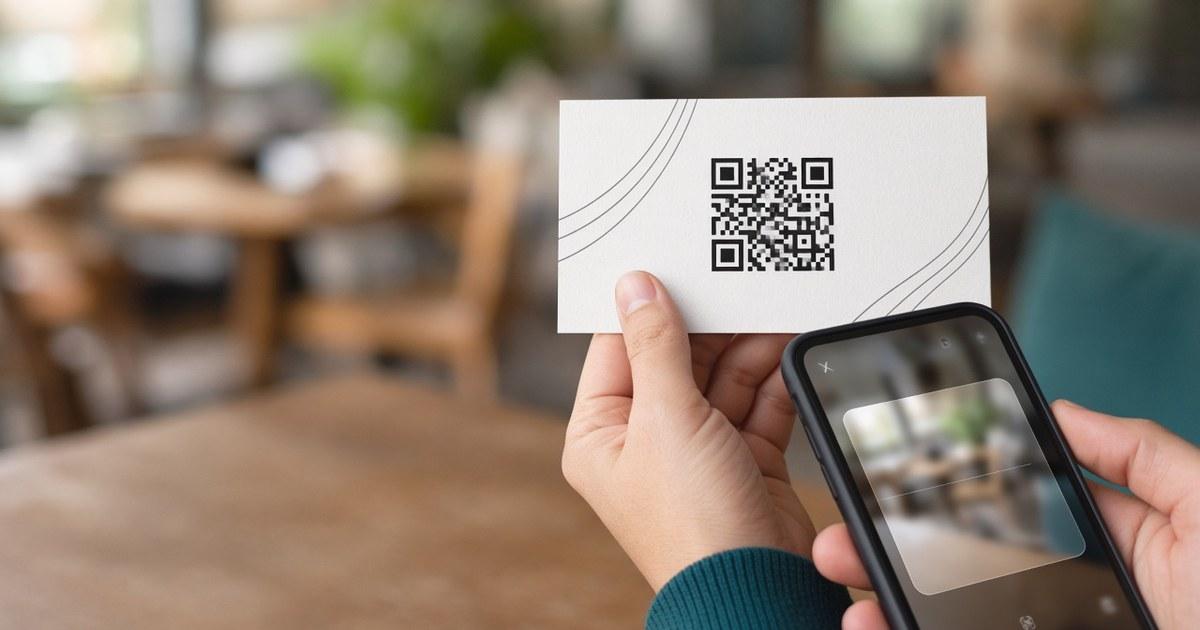
The workflow
Kleido's QR code business card generator builds the code into the layout. The workflow is straightforward:
- Choose the action and destination.
- Decide whether you need an editable redirect.
- Generate a print-quality QR code.
- Set its size and protect the quiet zone.
- Check contrast and color.
- Place it on the front or back, clear of trim.
- Review the card in Kleido if you use its generator.
- Run the pre-order testing checklist.
What should your business card QR code link to?
Start with the action you want after the scan. A consultant might send people to a booking page. A designer might choose a portfolio. For contact saving, use a contact page or a link to a vCard download. A focused destination makes the next step clear.
Write the label before making the code: “Scan to book,” “See my work,” or “Save my contact.” If the label is hard to write, the destination may be too broad. Our guide to the best QR code destinations for business cards helps you choose.
Open the destination on your phone. Check that it works without your account being signed in. A private preview link can look fine to you and fail for everyone else. For scheduling, confirm that someone can actually select a time. See the appointment-booking QR guide for that workflow.
Keep a readable website, email, or phone number on the card as a fallback. The QR should make following up easier without becoming the only way to reach you.
Should you use a static or dynamic QR code?
A static QR encodes fixed data, often a URL. A dynamic QR usually encodes a redirect URL whose final destination can be changed. The printed pattern stays the same. VistaPrint explains this distinction in its business card guide.
A direct link works when you expect the exact address to remain available. For flexibility, encode a short HTTPS redirect you control. You can send it to a portfolio today and a new portfolio later by changing the redirect.
A static code can also point at a page whose content you update. Changing the contents of that page is different from changing the URL encoded in the card.
Kleido generates a static vector QR. It does not host redirects or track scans. If you want a changeable destination or analytics, supply your own redirect or tracking link. Keep access to that link and its settings after the cards arrive.
How do you generate a QR code for print?
Use a QR generator or a card editor with a built-in QR tool. Paste the complete destination, including HTTPS, and scan the result before laying out the card. Check the address that opens, not just whether the phone recognizes the pattern.
For a separate QR file, choose SVG or PDF where supported. If you need PNG, use at least 300 ppi at the final printed size, following CirculateQR's file guidance. Enlarging a small screenshot does not restore sharp module edges.
Keep the code square when resizing. Avoid stretching it or cropping away the surrounding margin. Put the exported code into the actual card layout before testing again. A successful scan of the original file does not check changes made during placement.
If the card generator creates the QR itself, you can skip the separate export and import. You still need to inspect its final size, margin, contrast, and destination.
What size and quiet zone does a business card QR code need?
Treat 0.8 x 0.8 in (2 x 2 cm) as a practical minimum for a short-link code, not a guarantee. VistaPrint gives that minimum. Avery prefers at least 1 x 1 in to allow for differences in phone cameras. Leave room around the pattern as well.
The quiet zone is the empty margin that separates the code from its surroundings. As CirculateQR explains, ISO/IEC 18004 calls for at least 4 modules on every side. A module is a small square in the QR pattern. The margin must stay plain and free of text, borders, and artwork.
VistaPrint also recommends 0.125 in of clear space. That fixed measurement does not replace the module-based rule. Preserve enough space to meet both; the required physical margin depends on the module size.
Data density matters. In CirculateQR's worked comparison, a 37-character link produces a 29 x 29 module code, while a 236-character contact card produces a 61 x 61 module code at the same error correction level. These are examples, not universal counts. At the same printed width, the denser code has smaller squares for the camera to resolve.
For a small card, a short URL to a contact page or hosted vCard is often easier to accommodate than a full contact record encoded directly. If the pattern is dense, shorten the payload or give it more space.
| Rule | Do | Avoid |
|---|---|---|
| Size | Use at least 0.8 x 0.8 in (2 x 2 cm) for a short-link code, per VistaPrint; Avery prefers 1 x 1 in or larger. | Squeezing a dense contact code into the smallest space. |
| Quiet zone | Leave at least 4 clear modules on every side, per CirculateQR's explanation of ISO/IEC 18004. | Labels, frames, or photos inside the margin. |
| Contrast | Use dark modules on a light, plain field, following CirculateQR. | Pale colors, busy backgrounds, or an untested inverted treatment. |
| File format | Use SVG/PDF, or PNG at least 300 ppi at print size, per CirculateQR. | Screenshots, blurred edges, or stretched patterns. |
| Placement | Keep the entire code and margin clear of trim and corners, following qrcodebizcard's placement advice. | Letting the card edge cut into the quiet zone. |
Which colors help a QR code scan?
Dark modules on a light background are the safest default. A dark brand color on a pale panel can fit the card without sacrificing clarity. Avoid subtle color combinations that look attractive on screen but leave little difference between the pattern and background.
CirculateQR warns that inverted codes do not scan in every app. Kleido uses an inverted treatment on dark cards, so that design choice needs explicit scan testing. Do not assume that palette-matched contrast guarantees compatibility. If the dark version hesitates or fails, revise the design toward a light QR area and retest.
Finish matters too. Paperlust warns that glossy coatings over the QR can create glare. Test with light falling across the card rather than only straight down onto it. A screen cannot reproduce the surface of a finished card.
Should the QR go on the front or back?
Use the front when scanning is the main action you want at handoff. Use the back when your name, role, and contact information need the front's space. VistaPrint recommends this goal-based approach.
Give the code its own plain area. Put the action label outside the quiet zone. Keep the pattern and its full margin inside the safe zone, away from trim and rounded corners. qrcodebizcard's layout guide highlights those edge risks.
The quiet zone protects scanning; the safe zone protects important content during trimming. They solve different problems. Use the business card size, bleed, and safe zone guide when setting up the file. For visual hierarchy, see QR code business card layout tips.
How do you make the card with Kleido?
Paste your website URL into Kleido to start the card design. Kleido extracts your logo, colors, typography, tagline, and tone, then creates an editable, two-sided layout. Enable the QR toggle in the generator form.
By default, the QR points to the source URL you supplied. Override it with a booking page, portfolio, hosted vCard, or social profile if that better matches the card's purpose. Kleido accepts any HTTPS URL. Changing the destination regenerates the QR on the next preview update; it does not change cards already printed.
Kleido composes the QR into the layout with a quiet zone and palette-matched contrast. It renders the code as a vector. The live tool page describes the printed QR as roughly 0.8–1.0 in square, depending on the layout. Check the actual preview rather than treating that range as a scan guarantee.
Review both sides, edit any incorrect fields, and scan the on-screen QR before ordering. Remember the inverted treatment if your card is dark.
Your first design is free with 1 credit at signup, and there is no subscription. 100 cards cost 22 credits in matte or gloss, including US shipping. Printing and shipping are US only. See pricing before choosing your order.
What should you test before ordering?
Use this pre-order checklist on the final layout. CirculateQR recommends real-size printed proofs and varied scan conditions; Paperlust also recommends checking the on-screen code and the proof.
- Scan the final on-screen QR and confirm the exact destination.
- Print a proof at actual size with fit-to-page scaling disabled.
- Check the pattern's size, sharp edges, and uninterrupted quiet zone.
- Scan with different phones and native camera apps where possible.
- Try ordinary and dim lighting, a slight tilt, and a comfortable handoff distance.
- Test the actual stock and finish if available, especially for glare.
- Open the page on mobile data while signed out of your accounts.
- Complete the intended action: book, view work, or save the contact.
- Type the printed fallback URL and verify the contact details.
- If using a redirect, confirm that you can access and change its destination.
- Repeat the checks after any change to the URL, size, color, or placement.
If a scan fails, enlarge the code, shorten the encoded URL, clear the margin, or improve contrast. Test again before approving. An editable redirect can fix a destination later; it cannot repair an unreadable printed pattern.
Which common mistakes should you catch?
Shrinking the code to rescue a crowded layout. Remove secondary content or use the back. The code needs space to do its job.
Encoding every contact field directly. Use a short link to a contact page when a dense pattern will not fit comfortably.
Testing an old preview. A changed URL can change the pattern. Scan the version you actually intend to print.
Assuming a successful scan means a useful visit. Follow through to the final page and action. A login wall, missing file, or unavailable booking calendar still makes the card fail its purpose.
Ready to make your QR business card?
Choose the destination, give the code room, and scan the final proof. Kleido's QR code business card generator puts the QR into the card layout so you can review it before ordering.
Sources
- CirculateQR — QR Code Size Guide for Print: Minimum Size and Distance
- VistaPrint — Best practices for using QR codes on business cards
- Avery — How to Create a QR Code for a Business Card (Step-by-Step)
- Paperlust — QR Code Business Cards: Design Tips That Actually Work
- qrcodebizcard — QR Code Business Card Design: Size, Contrast, Quiet Zone and Placement